VVDI BIMTool Pro BMW FEM BDC KM Reset Guide

 Tutorial: BMW Series F series Reset FEM BDC mileage eeprom 95128-95256 using Xhorse VVDI BIMTool Pro.

i.e. F20 FEM module


Procedure:
Remove BMW FEM module from the vehicle

VVDI BIMTool Pro BMW FEM BDC KM Reset 1

Set up bench connection. Connect VVDI BIMTool pro with godiag BMW FEM test platform, FEM module, feed vvdi with 12v+ power supply (very important)

Turn on ignition switch of the godiag test platform

VVDI BIMTool Pro BMW FEM BDC KM Reset 2

VVDI BIMTool Pro BMW FEM BDC KM Reset 3

VVDI BIMTool Pro BMW FEM BDC KM Reset 4

VVDI BIMTool Pro BMW FEM BDC KM Reset 5

Run Xhorse vvdi bim tool software, go to BMW/FEN Key Learn and Get key Information
As you can see 2 keys are programmed and you can see VIN and current mileage is 183374 KM

VVDI BIMTool Pro BMW FEM BDC KM Reset 6
Press Reset KM
BIMTool will ask to program FEM/BDC first

VVDI BIMTool Pro BMW FEM BDC KM Reset 7

Press Program BMW FEM/BDC System

VVDI BIMTool Pro BMW FEM BDC KM Reset 8

Follow 4 steps to program BMW FEM/BDC

VVDI BIMTool Pro BMW FEM BDC KM Reset 9

Step 1. Backup coding
Read FEM/BDC coding ia OBDII or on bench
Step 2. Prepare service EEPROM
Open FEM/BDC shell, find 95128/95256 chip position, read EEPROM dump via BDM programmer
Load original eeprom dump and save special EEPROM dump, write special EEPROM dump back to 95128/95256 chip
Restore FEM/BDC shell, provide 12v+ and connect OBD

Step 3. Programming
This operation require connect FEM/BDC on bench and make sure you finish step 1 and step 2
provide 12v+ and connect OBD

Step 4. Restore original eeprom
Open FEM/BDC shell, write original EEPROM Dump read in step 2 back to 95128/95256 chip
Restore FEM/BDC shell, provide 12v+ and connect OBD

Step 5. Restore coding
Load coding file read in step 1, write to FEM/BDC via OBDII, finish FEM/BDC programming


Follow instructions to operate step by step.

First of all backup coding

VVDI BIMTool Pro BMW FEM BDC KM Reset 10

Step 2

Open FEM/BDC shell, find 95128/95256 chip position, read EEPROM dump

VVDI BIMTool Pro BMW FEM BDC KM Reset 11

VVDI BIMTool Pro BMW FEM BDC KM Reset 12

You can solder the chip and read with programmers (VVDI Prog, Orange5, Carprog original etc) with eeprom adapter
Or read with vvdi prog and FEM clip adapter without soldering

VVDI BIMTool Pro BMW FEM BDC KM Reset 13

(Remove and solder chip method is recommended as some say the clip adapter has a risk to lost data)

Read 95128 or 95256 eeprom data with vvdi prog and save original eeprom data

VVDI BIMTool Pro BMW FEM BDC KM Reset 14

Load the original eeprom dump file read above

VVDI BIMTool Pro BMW FEM BDC KM Reset 15

VVDI BIMTool Pro BMW FEM BDC KM Reset 16

Next step is to write service eeprom dump file

VVDI BIMTool Pro BMW FEM BDC KM Reset 17

VVDI BIMTool Pro BMW FEM BDC KM Reset 18

VVDI BIMTool Pro BMW FEM BDC KM Reset 19

Then FEM/BDC programming is processing

VVDI BIMTool Pro BMW FEM BDC KM Reset 20

VVDI BIMTool Pro BMW FEM BDC KM Reset 21

Open FEM/BDC shell, write original EEPROM Dump read in step 2 back to 95128/95256 chip

VVDI BIMTool Pro BMW FEM BDC KM Reset 22

VVDI BIMTool Pro BMW FEM BDC KM Reset 23

Load original coding file and write to FEM/BDC module

VVDI BIMTool Pro BMW FEM BDC KM Reset 24

VVDI BIMTool Pro BMW FEM BDC KM Reset 25

VVDI BIMTool Pro BMW FEM BDC KM Reset 26

Writing coding.

NOTE:

If failed to write coding on bench, reconnect the power for BMW FEM BDC system, load the coding file again.

VVDI BIMTool Pro BMW FEM BDC KM Reset 27

VVDI BIM TOOL Pro BMW FEM/DC programming success.

VVDI BIMTool Pro BMW FEM BDC KM Reset 28

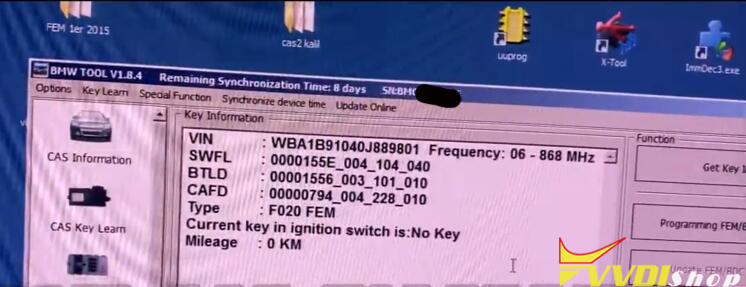
Get key information again, the mileage is 0 KM now.

VVDI BIMTool Pro BMW FEM BDC KM Reset 29

Restore BMW FEM/BDC module back to vehicle and driver a test.

Done.

http://blog.vvdishop.com/reset-bmw-fem-km-with-vvdi-bimtool-pro/

Comments

Popular posts from this blog

How to Solve VVDI BIMTool Error 211?

  The   Xhorse VVDI BIMTool Pro  reports error 211 when I was trying to flash an EGS transmission. “Error:211 Error om flash programming Programming state invalid.” Solution: Slow down the communication speed between the  vvdi bimtool  and the control unit. Go to  Option  tab-  Parameters settings – change programming speed to  1    (it is three by default). Read also: Xhorse VVDI BIMTool Pro Read BMW MSD80 ISN and Change VIN Success

BMW CAS FEM BDC Coding Lost VVDI BIMTool Pro Solution

This is a tutorial on how to solve BMW CAS/FEM/BDC version & coding loss issue with  Xhorse VVDI BIMTool Pro . You can refer to the solution in this article if you’ve met the following problems:   BMW CAS4+ and FEM/BDC OBD show unsupported versions and require upgrades. BMW CAS4+ and FEM/BDC OBD preprocessing completes but indicates coding loss with no recovery possible. BMW OBD preprocessing is unexpectedly interrupted due to missing SWFL version, halting further processing. The vehicle’s SWFL or coding version mismatch causes functional deficiencies.   Solution Here’s taking FEM module as an example.   When the SWFL, CANFD coding and key position info are missing, we can resolve these issues using BIM TOOL or BIMTool Pro. Connecting Tools Connect  VVDI BIM TOOL , then open software, select Fxx/Gxx Program/Code >> Auto detect >> Connect car Calculating Programming Files Vehicle programming >> 40-FEM[FEM_BODY] >> Calculate Programming...