Xhorse VVDI BIMTool Pro Works with CAS Plug on Bench

 Xhorse VVDI2 has been long been tested with no issue with the xhorse CAS plug adapter (check previous post). Now the Xhorse VVDIM BIMTool Pro has confirmed working too.

After the recent software and firmware updates you can now connect directly to a cas2 cas3 cas3+ cas3++ cas3+ istap directly without the need for the junction box. This allows you to read isn on bench, add key, downgrade istap and a few other functions. Make sure you are on current software and CAS plug from xhorse.

The released the CAS plug as being able to correct connect directly to a CAS without a JBE module so you can do bench testing or mrp downloads on the bench downgrades with the CAS plug

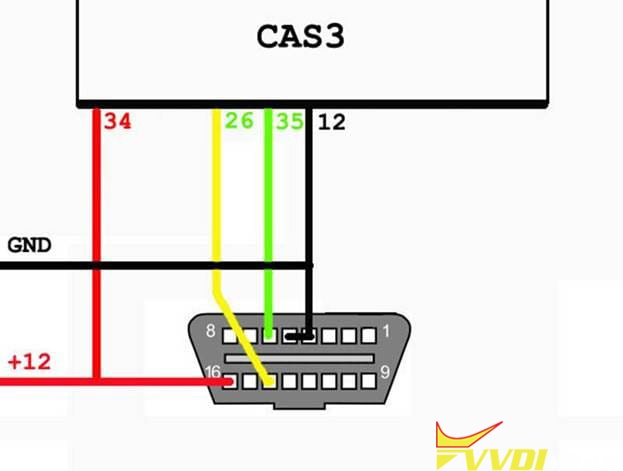
This is the pinout required for a vvdi bim tool to cas plug to work
they will work both vvdi2 and vvdi bimtool CAS1 CAS3 CAS2 CAS3+ CAS++
it will do pretty much all the CAS modules apart from CAS4 in the vvdi hardware range

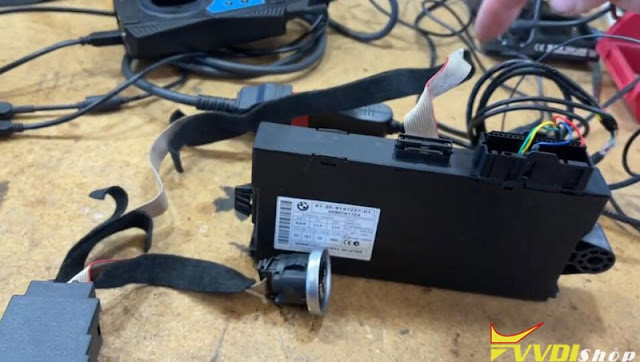
Xhorse VVDI BIMTool Pro Works with CAS Plug 1

Xhorse VVDI BIMTool Pro Works with CAS Plug 2

Xhorse VVDI BIMTool Pro Works with CAS Plug 3

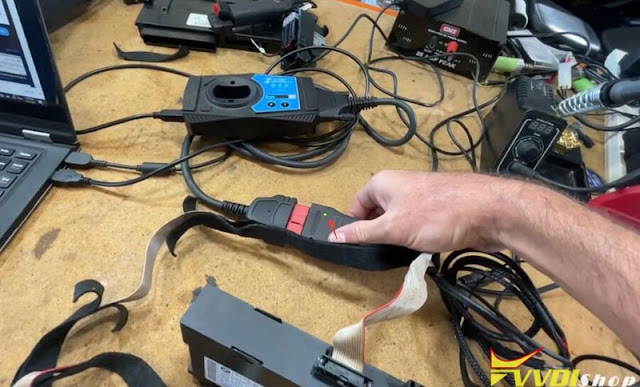
You do need 12 volt source.

You get a 12 v plug plugged straight into the car’s plug here that is then connected into the VVDI BIM Tool in this case.
You can see we get a little green light to say the bim tool is connected actually that green light comes on when you do power it up.

Xhorse VVDI BIMTool Pro Works with CAS Plug 4

Xhorse VVDI BIMTool Pro Works with CAS Plug 5

Xhorse VVDI BIMTool Pro Works with CAS Plug 6

Xhorse VVDI BIMTool Pro Works with CAS Plug 7

If connect failed, re-terminate these terminals. Connect and try again.

Now it connects to CAS system.

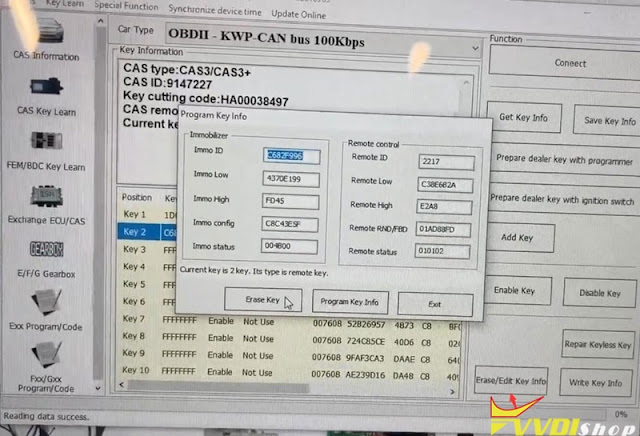
Insert key into ignition and we can get key info.

Start security login, you can see it is CAS3+.

You can delete key, add key once it is connected.

Xhorse VVDI BIMTool Pro Works with CAS Plug 8

Xhorse VVDI BIMTool Pro Works with CAS Plug 9

www.vvdishop.com

Comments

Popular posts from this blog

Xhorse VVDI BIMTool Pro Update to V1.8.8

  Xhorse VVDI BIMTool Pro   software update to V1.8.8 on June 15th, 2023.   2023-06-15 Require firmware V1.8.4 ===== BMW V1.8.8 ===== 1. Improvement the internet connection 2. Bugfix Free download VVDI BIMTool software V1.8.8 http://dl.xhorse.com/product/bmwtool/software/BMWTOOL-InstallerV188.exe

VVDI BIM Tool Pro E F G Series Coding Guide

  This article aims to intro the VVDI BIMTOOL Pro tool’s new function: BMW E/F/G programming and coding BMW E/F/G programming and coding is the most important new feature of  Xhorse VVDI BIM Tool Pro Tool .The ethernet interface will speed up the writing data instead of the USB cable previously used to connect to the BMW Tool. Part 1. Program / Code BMW Exx Connect Car   Can auto detect vehicle model, read module information, support chassis: E36, E38, E39, E46, E52, E53, E60, E63, E64, E65, E66, E67, E70, E71, E72, E83, E85, E86, E89, E90, E91, E92, E93, K1X, K24, KH2, R50, R52, R53, R55, R56, R57, RR1,.etc chassis   Read and write Vehicle configuration(FA/FP) Can read the configuration information inside of vehicle module, and to change the vehicle configuration information for replacing second-hand module.   Registered unit information from gateway / Calculate adaptive control unit Read registered unit information from gateway Calculate adaptive control unit-...

VVDI BIMTool Pro BMW FEM BDC KM Reset Guide

  Tutorial:   BMW Series F series Reset FEM BDC mileage eeprom 95128-95256 using   Xhorse VVDI BIMTool Pro . i.e. F20 FEM module Procedure: Remove BMW FEM module from the vehicle Set up bench connection. Connect VVDI BIMTool pro with  godiag BMW FEM test platform , FEM module, feed vvdi with 12v+ power supply (very important) Turn on ignition switch of the godiag test platform Run  Xhorse vvdi bim tool software , go to BMW/FEN Key Learn and Get key Information As you can see 2 keys are programmed and you can see VIN and current mileage is  183374 KM Press  Reset KM BIMTool will ask to program FEM/BDC first Press Program BMW FEM/BDC System Follow 4 steps to program BMW FEM/BDC Step 1. Backup coding Read FEM/BDC coding ia OBDII or on bench Step 2. Prepare service EEPROM Open FEM/BDC shell, find 95128/95256 chip position, read EEPROM dump via BDM programmer Load original eeprom dump and save special EEPROM dump, write special EEPROM dump back to...